

Android TV Optimization Guide: Stream 4K Content via VPN
 Sharon
  2026.08.18
Unlike closed smart TV platforms, Android TV (including Google TV, Sony, TCL, Hisense, Xiaomi, and Nvidia Shield) offers an open and highly customizable ecosystem. Thanks to its underlying Android framework, users can easily access official marketplaces or install apps manually via sideloading.
However, because hardware specifications vary significantly across devices—ranging from premium hardware like the Nvidia Shield to budget-friendly, entry-level streaming boxes—configuring your network for flawless 4K playback requires some strategic software fine-tuning. Below is an optimization guide tailored to maximize your bandwidth and ensure a smooth ultra-high-definition streaming experience.

🗺️ Tailoring the Setup to Your Hardware Environment
To configure a secure network connection on Android TV, choose the installation path that matches your specific device:
Path A: Official Global Devices (e.g., Sony TV, Chromecast, Nvidia Shield)
If your television or streaming box features the official Google Play Store, deployment takes just a few steps:
-
Open the Google Play Store on your screen, search for PandaVPN, and install the app.
-
Launch PandaVPN to generate a secure QR code, then scan it with your phone to sync your login credentials seamlessly.
-
Click to connect. When the Android system prompts you with a standard “Connection Request,” click “OK” to authorize the secure profile.
Path B: Customized or Non-GMS Devices (e.g., Fire TV, Xiaomi Box, Domestic Smart TVs)
If your platform does not have access to the standard Google storefront, you can leverage sideloading:
-
Visit the secure, official website on your computer and Download PandaVPN for Android TV to get the dedicated APK file, then transfer it to a USB flash drive.
-
Insert the drive into your streaming device, open the native File Manager, select the
.apkfile, and authorize the installation. -
Alternative: If your box lacks a physical USB port, install the “Downloader” app from your current app store and input the official APK download link to download the software directly over the internet.
⚙️ Advanced Performance Tuning for Smooth 4K Playback
Smart TV processors and RAM allocations are smaller than those found in computers or flagship smartphones. To stream heavy 4K Dolby Vision data streams on modest hardware, apply these system adjustments:
1. Configure Split Tunneling to Lower CPU Overhead
Decrypting and encrypting global network traffic requires active processing power. Forcing local services like weather modules or regional apps through an encrypted tunnel can overload your TV box, resulting in interface lag or dropped frames.
-
The Fix: Open the settings within PandaVPN and enable Split Tunneling. Select the “Only protect selected apps” option, and tick your essential global streaming apps (e.g., Netflix, YouTube). Your domestic services will bypass the encryption layer, saving processing power and maximizing local connection speeds.
2. Leverage Lightweight Cryptography for Reduced Latency
Budget hardware can overheat under heavy network loads, leading to thermal throttling and video buffering.
-
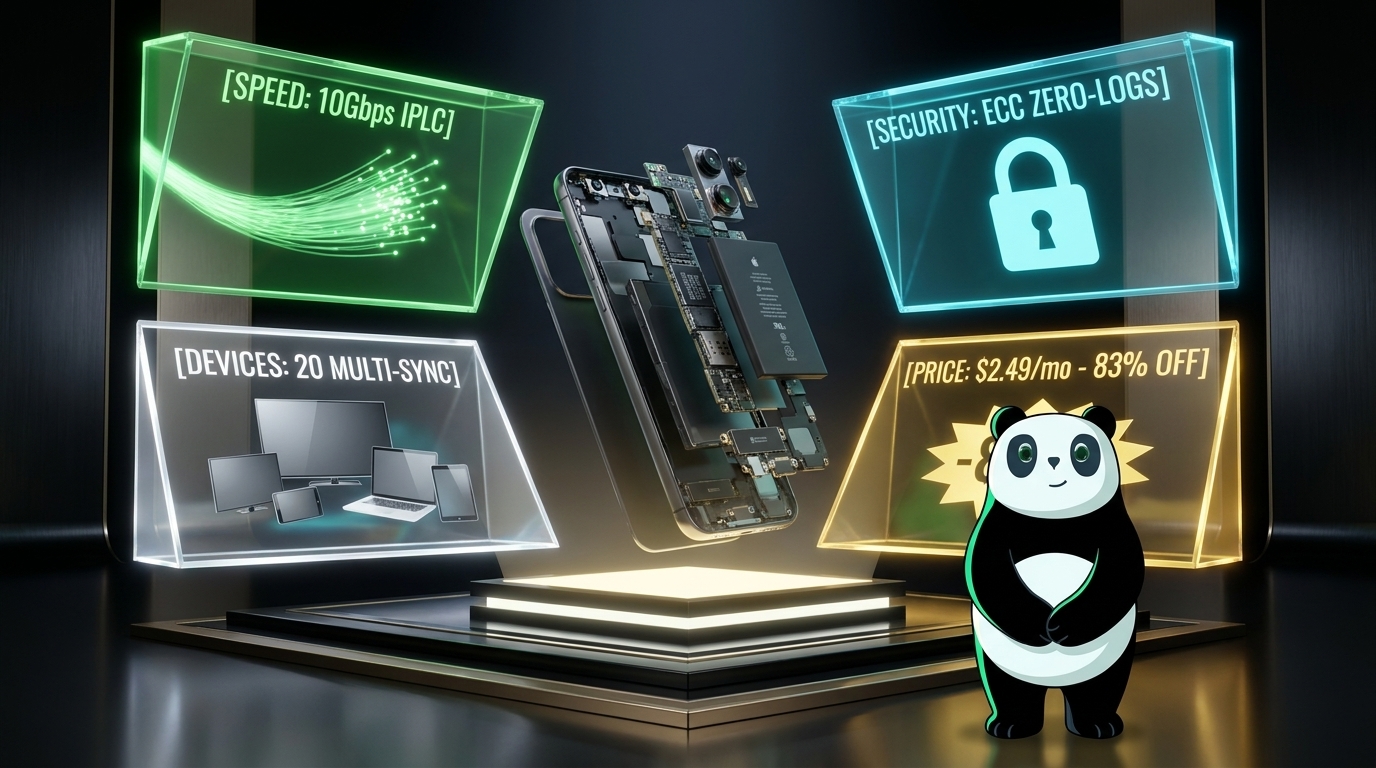
The Fix: PandaVPN features highly efficient protocol management. By selecting optimized connection protocols such as WireGuard, the software runs with minimal memory footprint and light CPU overhead. This ensures a stable data throughput rate of up to 10Gbps over ultra-fast IPLC lines without overheating your media player.
3. Mask Network Traffic to Defeat Peak-Hour Throttling
Many internet service providers (ISPs) actively use Quality of Service (QoS) rules to throttle bandwidth to major streaming platforms during evening peak hours.
-
The Fix: Connecting to a server applies bank-grade ECC encryption to your data packet headers. Because your ISP can only see anonymous encrypted traffic rather than your precise video destination, it cannot apply targeted throttling. This restores your streaming connection to its true physical bandwidth capability.
⚠️ Essential Security Guidelines for Large Screens
-
Avoid Unverified Free TV Proxies: Smart TV boxes are frequently targeted by malicious entities. Free, unverified proxy software often contains background scripts or botnet payloads that consume your home bandwidth or compromise personal data. Stick to verified services backed by a transparent 7-day money-back guarantee.
-
Manage Storage Spaces: Most streaming sticks carry limited flash storage (typically 8GB to 16GB). Watching high-definition video produces large amounts of temporary app data. Periodically clear your application caches or utilize the one-click network reset function inside your application to keep the system running smoothly.
An open Android TV environment gives you access to a world of entertainment, but getting the best picture quality depends on smart hardware optimization.
While software cannot physically turn an entry-level streaming stick into a premium gaming device, a streamlined client app makes a noticeable difference. PandaVPN provides a lightweight footprint, intelligent split tunneling, and a global network of over 6,000 servers. This setup lets you maximize your device’s capabilities and enjoy smooth, buffer-free 4K video. Get started by installing PandaVPN on your device today.

Related Posts


Featured Posts